How to Use the TV
The chalet has two TVs. Choose the one you are using to jump to its instructions.
Main TV
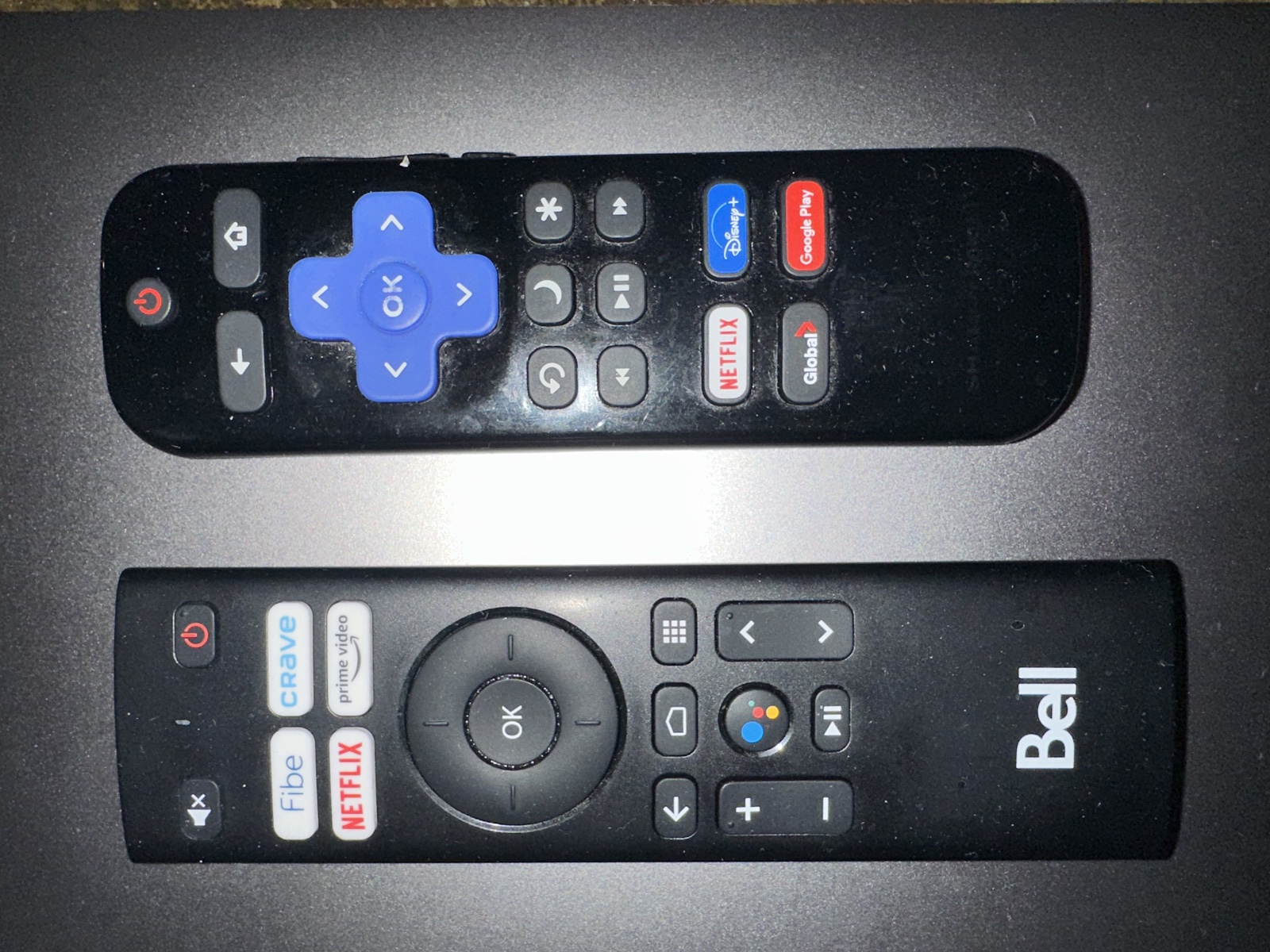
This TV uses two remotes:
- Roku remote: the smaller remote with the blue directional buttons.
- Bell remote: the larger remote with the Bell logo.
1. Turn on the TV
Use the Roku remote (the smaller remote with the blue directional buttons).
Press the red Power button at the top of the remote.
2. Open Apps & Inputs
Using the Roku remote, navigate to “Apps & Inputs” on the TV home screen.
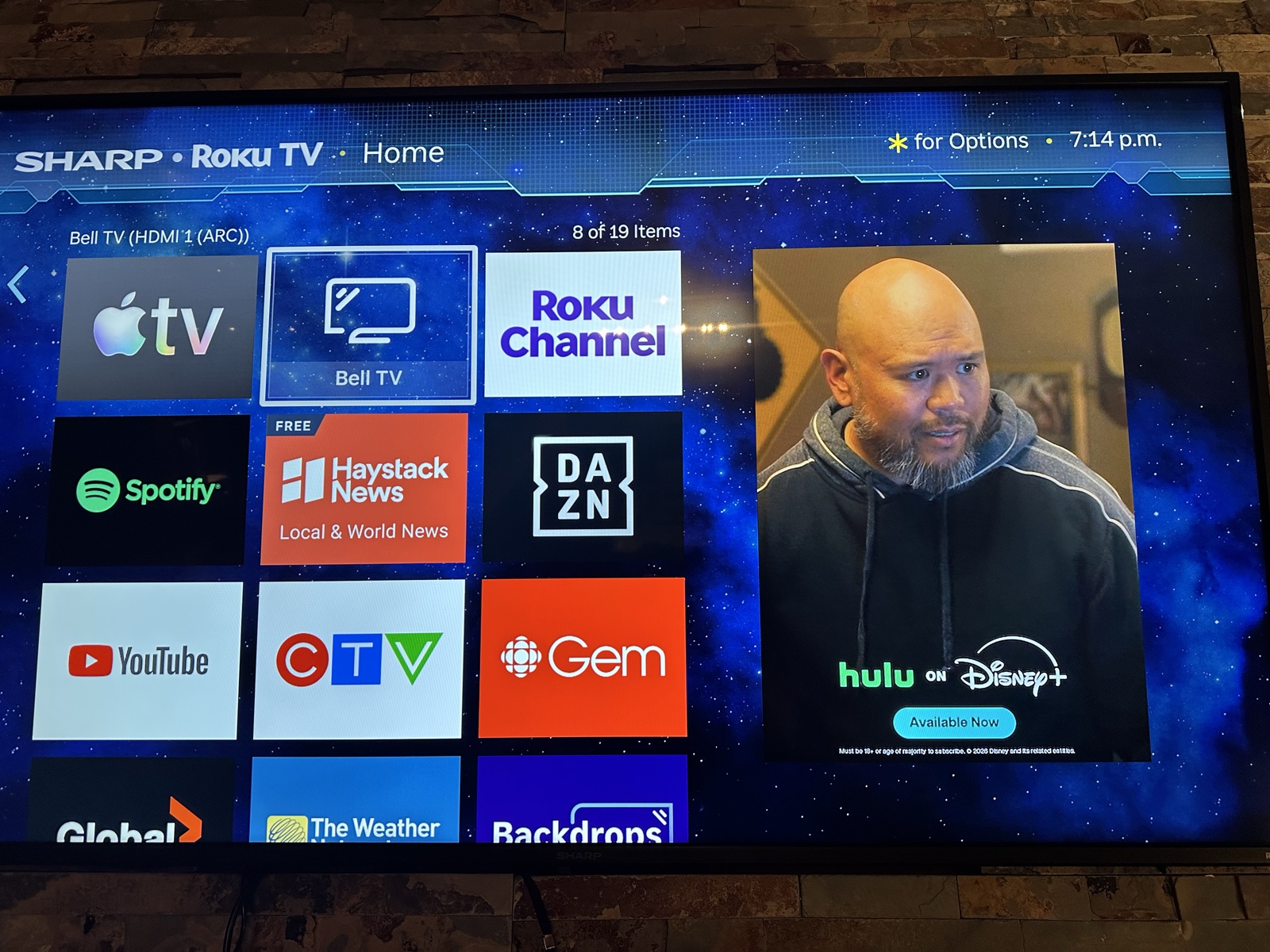
3. Select Bell TV
Find “Bell TV” and press OK.
Bell TV will open.
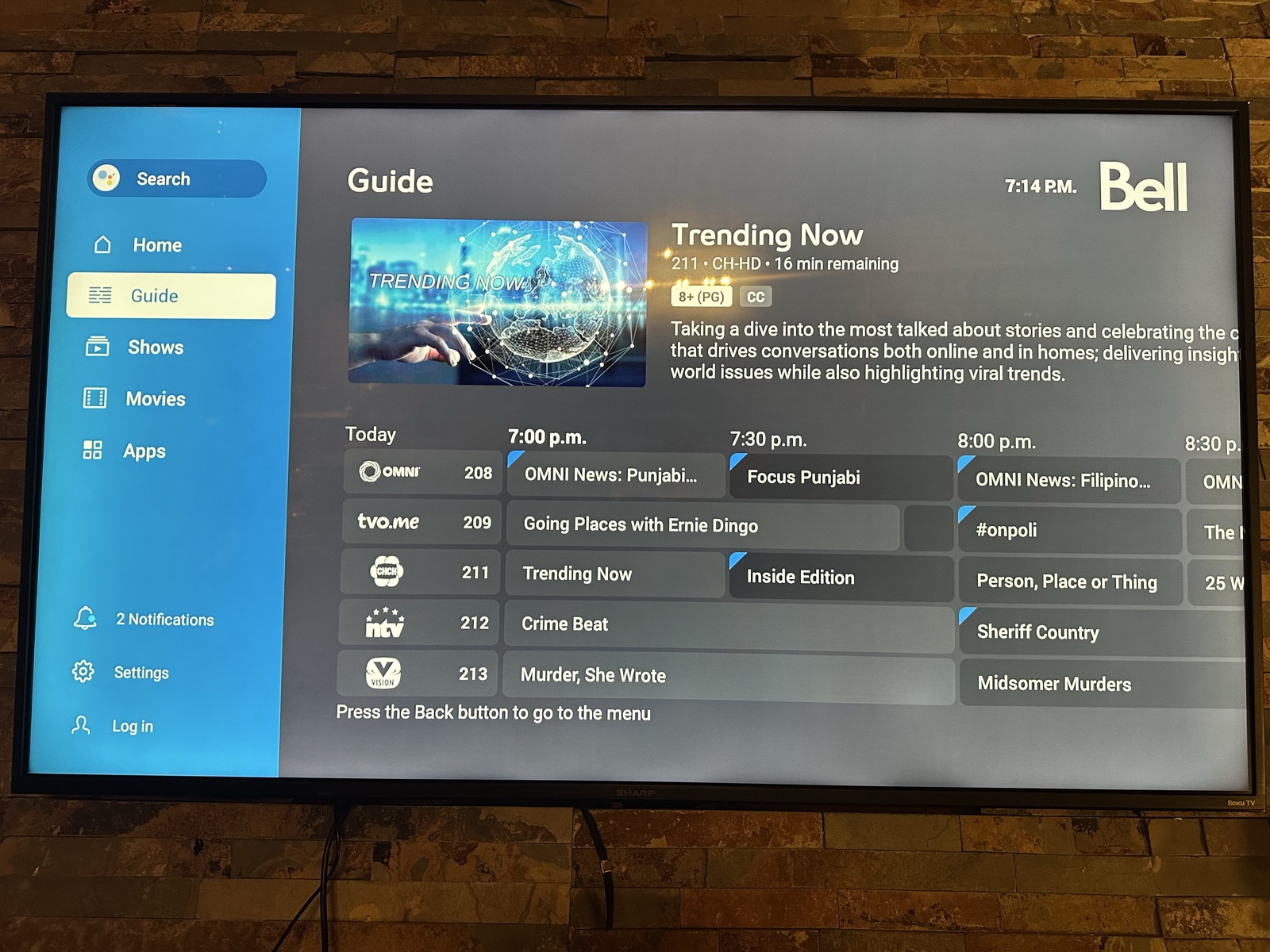
4. Choose a Channel
Switch to the Bell remote (the larger remote with the Bell logo).
Navigate to “Guide”, then use the directional buttons to browse the available channels.
Press OK to select a channel and start watching.
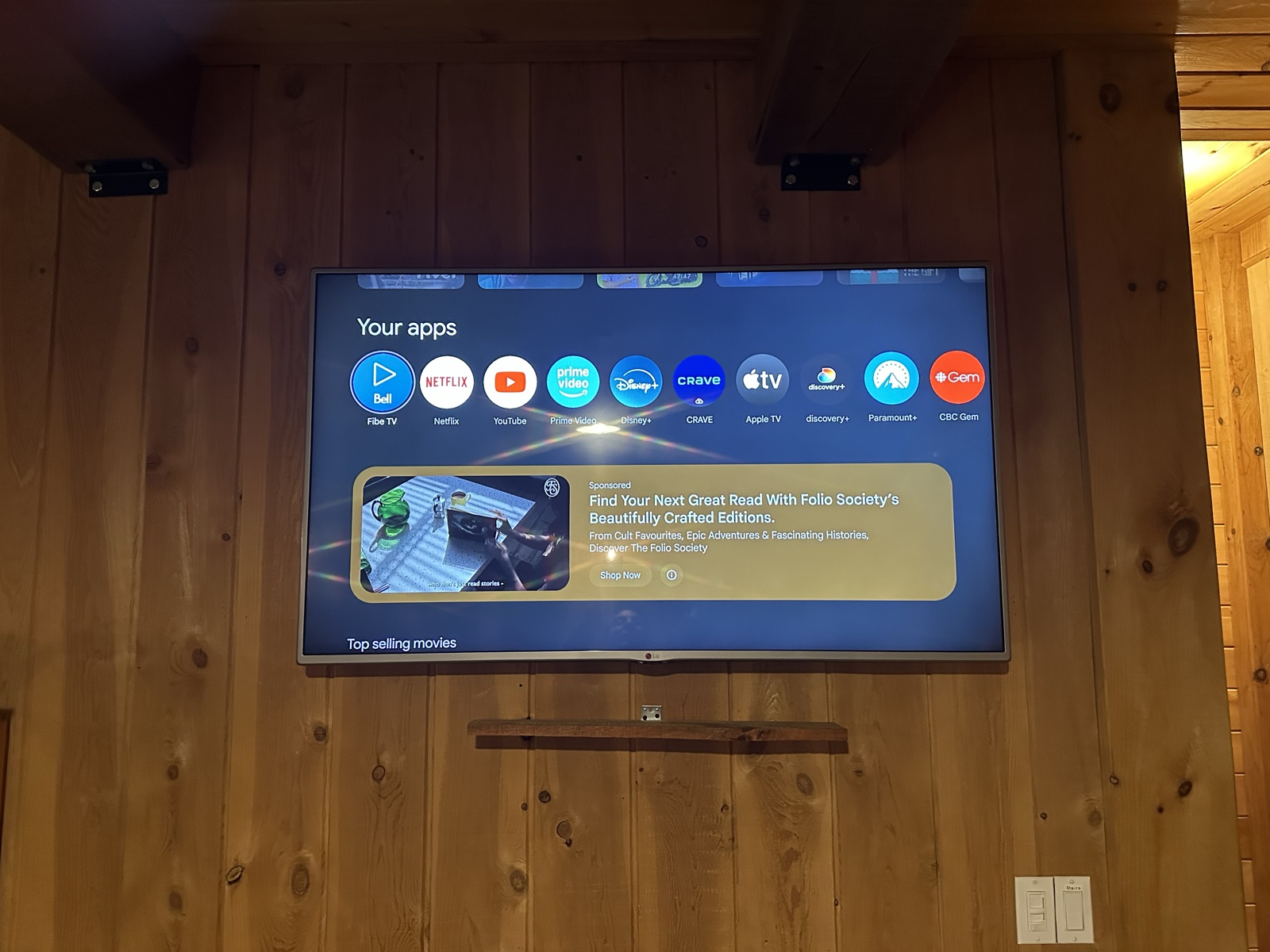
Pool Table Room TV
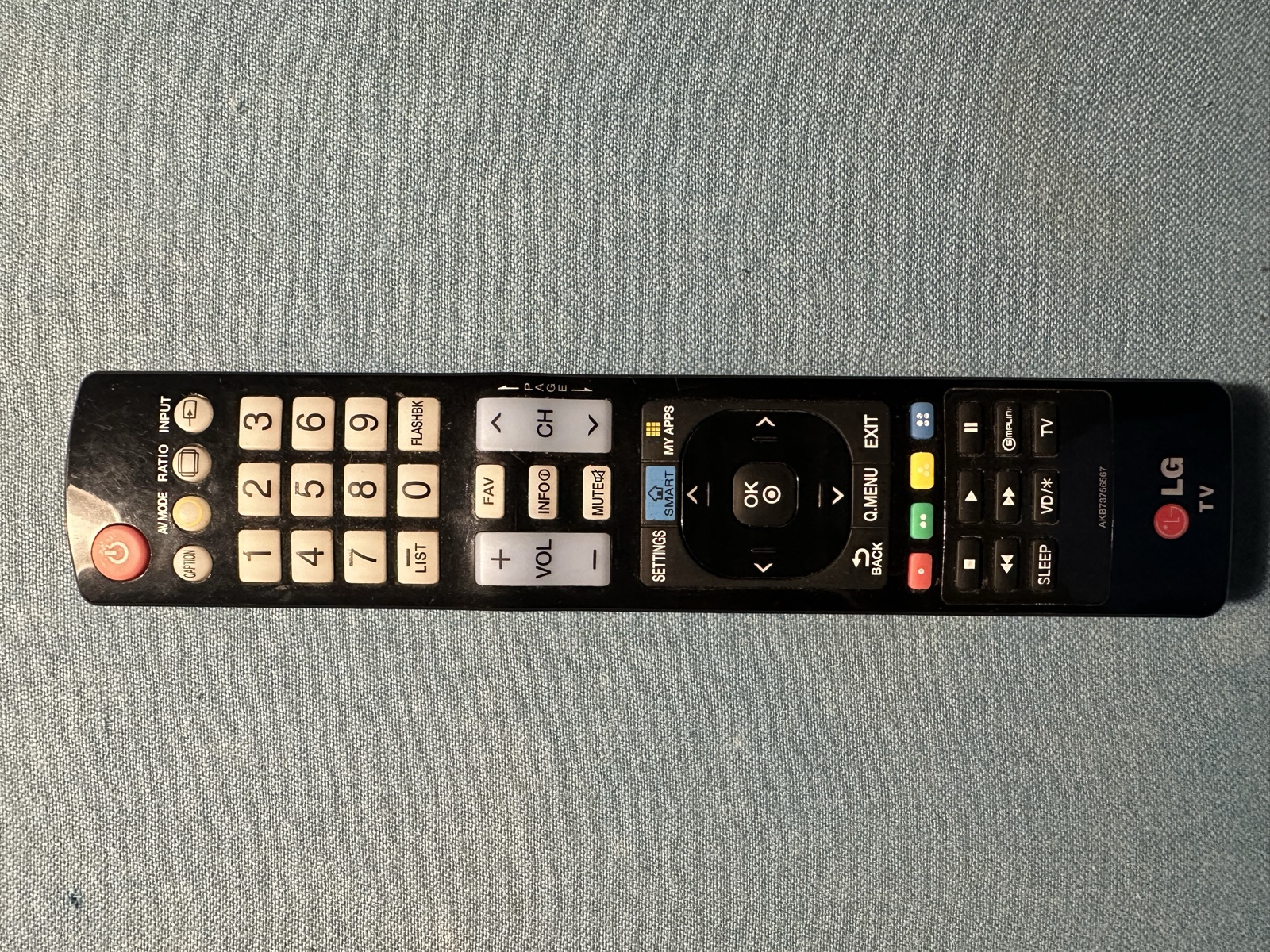
This TV works differently from the Main TV and uses one remote: the LG remote. Use it to turn on the TV, select the input, and watch television with Bell Fibe TV.
1. Turn on the TV
Use the LG remote.
Press the red Power button at the top of the remote.
2. Open the Input List
Press the INPUT button near the top-right of the LG remote.
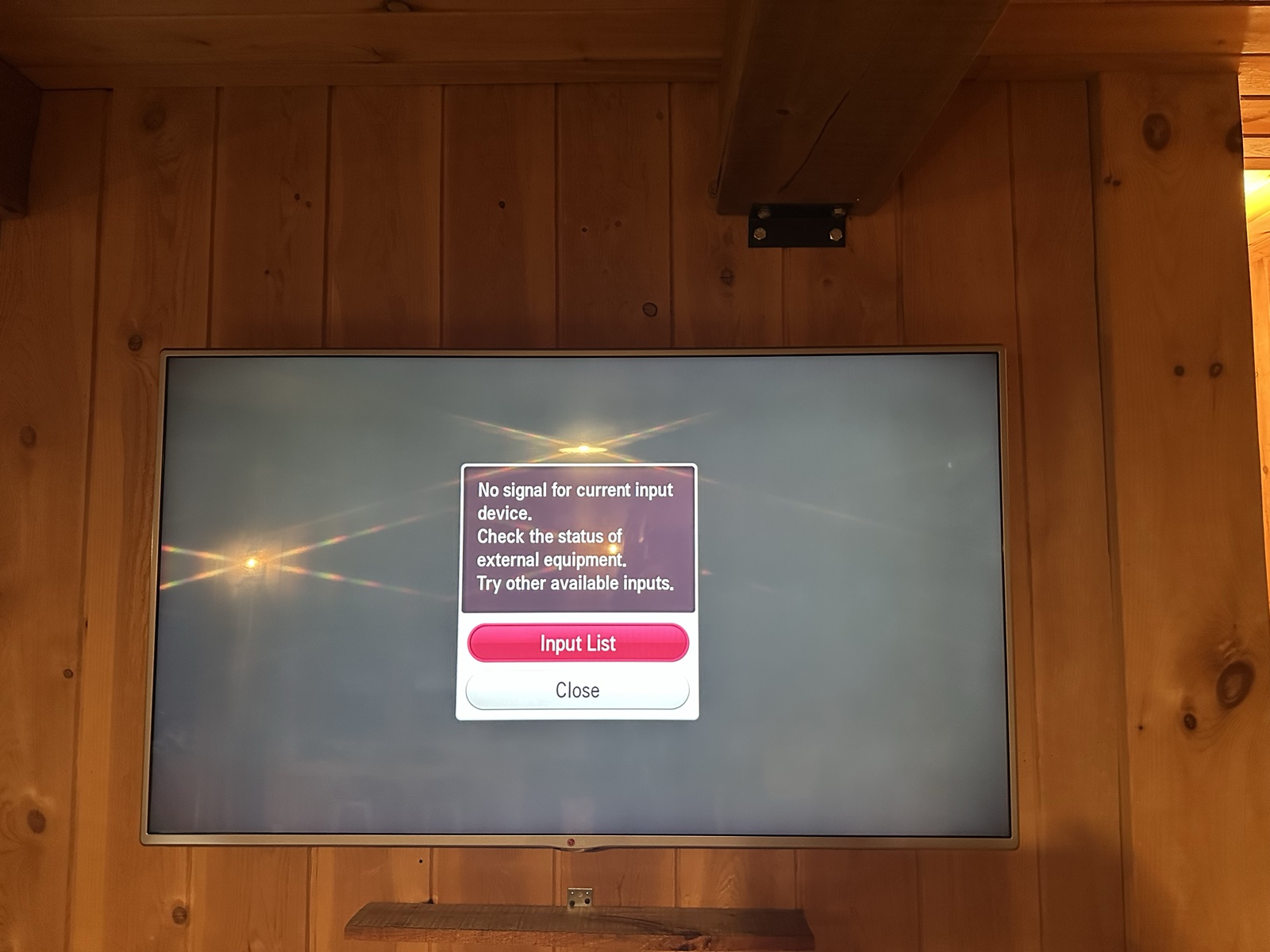
If the TV displays “No signal for current input device,” select “Input List.”
3. Select HDMI2
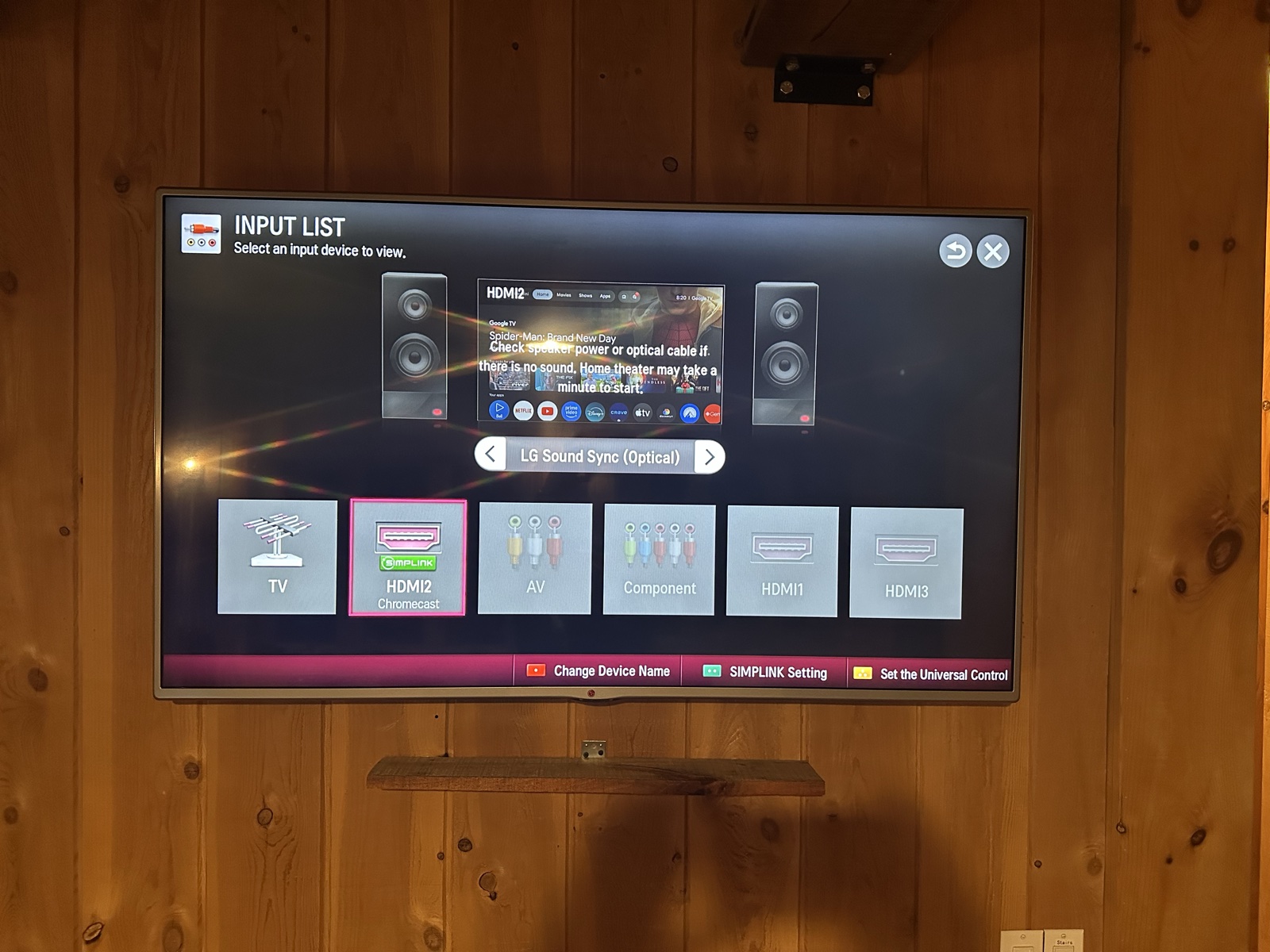
From the Input List, select HDMI2.
Use the directional buttons on the LG remote to highlight HDMI2, then press OK.
4. Open Bell Fibe TV
Once HDMI2 is selected, the Bell Fibe TV screen should appear.
Use the LG remote to select the Bell Fibe TV app if necessary.
Use the LG remote to open the Guide and choose a channel.